

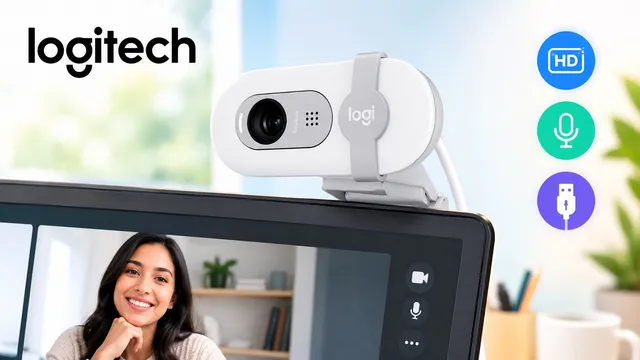
Yes, if you need a cheap webcam for video calls.
The Logitech Brio 100 webcam shoots Full HD 1080p. It has a privacy shutter and a built-in mic. It costs about $25 on sale.
It’s not great for streaming. It’s also weak on wide shots and sound.
This Logitech Brio 100 webcam review covers image quality, setup, drivers, price, and fixes. You’ll also see who should skip it. Specs and price come from the official Logitech Brio 100 product page and an independent review by Stream Tech Reviews.
Quick Facts: Logitech Brio 100 Webcam
Good for: budget video calls, online classes, simple home offices.
Not good for: streaming, group shots, autofocus.
QIs the Brio 100 a Good Webcam?
Yes, for the price.
You get a clear picture for calls. Setup is easy. The shutter covers the lens when you’re done.
It does have limits. The focus is fixed. The view is narrow. The mic sounds thin. None of that ruins a normal work call.
QWho Should Buy the Logitech Brio 100 Webcam?
This camera is for people who want something simple. A few examples:
- First-time buyers. You don’t want settings or software. You plug it in and go.
- Students. You need to be seen in class. You don’t need studio quality.
- Freelancers. You join a few Zoom calls a week. Your laptop camera looks grainy. This is a cheap fix.
- Small business owners. You run team meetings on Google Meet or Teams. You want one camera that works.
Logitech Brio 100 Webcam Image Quality (1080p)
For calls, the picture is good enough. Stream Tech Reviews found the colors decent and the contrast natural. Sharpness was fine for Zoom and Teams.
The main flaw is grain. You’ll see more of it in a dim room. Most budget webcams do this.
Logitech also claims its RightLight feature makes your face up to 50% brighter. That test compared it with the older C270. It ran in a controlled setting. Your room will give different results.
So treat it as a small help. It won’t save a dark room. Fix your lighting first.
Easy lighting fixes:
- Face a window. Don’t sit with it behind you.
- Put a lamp behind your monitor. Point it at the wall.
- Turn on the ceiling light at night.
Fixed Focus and Field of View
Two specs matter here.
Fixed focus means no autofocus. The picture stays sharp at normal sitting distance. Hold something close to the lens, and it turns soft.
The 58° field of view is narrow. You see yourself and a little background. To fit more in, you have to sit back.
This works well for solo calls. A narrow view hides a messy room.
It’s tight for two people. It’s a poor choice if you show products or a whiteboard.
“Framing tip: Sit about an arm’s length away. Keep your eyes about a third of the way down the frame. Raise your monitor if you look down at the lens.
QDoes the Logitech Brio 100 Zoom Out?
No. The field of view is fixed at 58 degrees. You can’t widen it.
Some apps have a zoom or crop option. That only narrows the picture. It never shows more of your room.
To fit more in the frame:
- Move your chair back.
- Place the webcam a bit higher or further away.
- Face a wall with open space behind you.
Need a wide view? Pick a different webcam.
QMicrophone Quality: Is It Good Enough?
It’s fine for meetings. It won’t impress anyone.
Stream Tech Reviews calls the mic tinny but normal for a webcam. Most webcam mics sound like this.
Use the built-in mic if your calls are short and your room is quiet.
Get a USB mic if you teach, record videos, or sit in an echoey room. A basic one costs about the same as this webcam. It will improve your sound more than a better camera would.
Build Quality and Privacy Shutter
The Brio 100 is basic. It’s all plastic and very light.
The shutter is the best part. Slide it over the lens when you finish. No software needed.
There’s one catch. The cover can slide over the mic by accident. If your audio cuts out, check the shutter first.
The 60-inch cable can’t be removed. If it breaks, you replace the whole camera. Be gentle with it.
How to Attach the Logitech Brio 100 Webcam to a Monitor
Mounting is the weak spot. There’s no tripod thread. The base just sits on top of your screen. One bump can knock it off.
To get a steady fit:
- Set the webcam at the top center of your screen.
- Let the base rest on the back of the monitor.
- Check that it sits flat.
- Add a bit of removable putty if it wobbles.
- Run the cable behind the monitor.
- Clip the cable so it doesn’t pull the camera.
On a laptop, make sure the base grips the lid edge. Thin or curved lids can make it slip.
On a curved or ultrawide monitor, the base may not sit flat. A small clip-on stand works better.
How to Install and Set Up the Logitech Brio 100 Webcam
Setup takes about two minutes. These steps also cover how to connect, turn on, and use the webcam.
- Plug it in. Use a USB-A port on your computer.
- Use an adapter if needed. Many new laptops only have USB-C. A small USB-A to USB-C adapter fixes that.
- Wait a few seconds. Your computer installs it on its own.
- Slide the shutter open. A closed shutter blocks the lens.
- Open your app. Pick the Brio 100 as your camera.
- Check your mic. Choose the webcam mic or your own.
- Test it. Record 10 seconds and play it back.
Where to pick the camera:
- Zoom: Settings, then Video, then Camera.
- Microsoft Teams: Settings, then Devices.
- Google Meet: Settings, then Video.
Menus change with updates. Look for “Camera” or “Video.”
Logitech Brio 100 Webcam Driver and Software Download
You don’t need a driver. Logitech sells the Brio 100 as plug-and-play. Your computer sets it up on its own.
Logitech’s product page also has a Software and Support tab. Check it for optional software. Basic calls work without any.
If your computer can’t find the webcam:
- Try a different USB port.
- Plug straight into the computer, not a hub.
- Restart your computer.
Logitech Brio 100 Webcam on Windows 10 and Mac
- Windows: Logitech lists Windows support. Windows 10 users can check the exact versions on Logitech’s support page. Plug it in, and Windows installs it. Then pick it in your app.
- Mac: Plug it in and pick the Brio 100 in your app. Don’t see it? Open System Settings, then Privacy & Security, then Camera. Turn on access for your app.
- Chromebook: Logitech lists ChromeOS as supported. Plug it in and choose it in your app.
Logitech Brio 100 Manual
Brio 100 has setup help on its support site: support.logi.com. Search “Brio 100” for the setup guide.
The webcam is simple. Most people never open the manual.
Logitech Brio 100 vs Other Webcams
Pick the Brio 100 if price matters most.
Pick the C270 only if you want the bare minimum. Logitech’s own test shows the Brio 100 looks brighter.
Pick a step-up model if you show products, share a desk, or want sharper video. Logitech also sells the Brio 500 and MX Brio for people who want even more.
Brio 100 vs Brio 101
You may see a Brio 101 on Amazon. Stream Tech Reviews says it works the same as the Brio 100. The reviewer only found it on Amazon, not on Logitech’s site or at Best Buy.
Just buy the cheaper one. Pick a seller with easy returns. Make sure the listing says Logitech.
Common Problems and Easy Fixes
Camera not detected
- Try another USB port.
- Skip USB hubs.
- Restart your computer.
Camera blocked by your system
- Windows: Settings, then Privacy & security, then Camera.
- Mac: System Settings, then Privacy & Security, then Camera.
- Allow access for your app.
Image too dark
- Face a light source.
- Close other apps that use the camera.
- Move away from a bright window behind you.
Mic not working
- Check that the shutter isn’t covering the mic.
- Pick the webcam mic in your app’s audio settings.
Blurry image
- Wipe the lens with a soft cloth.
- Sit a bit further back.
- Remember, there’s no autofocus.
Pros and Cons
Pros
- Very low price.
- Full HD 1080p video.
- Built-in privacy shutter.
- Built-in mic.
- Plug and play on Windows, macOS, and ChromeOS.
- Made with recycled plastic, per Logitech.
Cons
- Fixed focus.
- Narrow 58° view.
- Tinny mic.
- Weak mount and no tripod thread.
- Cable can’t be removed.
- Some grain in dim rooms.
Logitech Brio 100 Webcam Price and Where to Buy
When I checked, Logitech listed the Brio 100 at $24.99. The old price was $39.99. Prices change often, so check before you buy.
Logitech.com offers free shipping and free returns within 30 days, per its product page.
Amazon is handy for comparing prices. You may also see the Brio 101 there.
If the sale ends, compare the price with the Brio 300. A small gap makes the upgrade worth it.
Final Verdict
The Logitech Brio 100 webcam is a solid budget pick. It handles the basics and costs very little.
Buy it if:
- You take video calls or online classes.
- You want an easy setup.
- You want a cheap upgrade over your laptop camera.
Skip it if:
- You stream or record content.
- You need autofocus.
- You want a wide shot for several people.
- Sound quality matters to you.
For most beginners and small business owners, it’s a safe buy. You can return it within 30 days if you don’t like it. If you want to learn more about technology news and AI features, stay connected with us.
FAQs
QIs the Brio 100 a good webcam?
Yes, for the price. The Logitech Brio 100 webcam gives you 1080p video, a privacy shutter, and a built-in mic. It works well for Zoom, Teams, and Meet. It’s weaker for streaming and wide shots.
QHow do I set up my Logitech Brio 100 webcam?
Plug the USB-A cable into your computer. Wait a few seconds while it installs. Slide the shutter open. Then pick the Brio 100 as your camera in Zoom, Teams, or Meet. Logitech lists it as plug-and-play.
QIs the Logitech Brio still good?
It depends on which Brio you mean. The original Brio is a higher-end 4K model. The Brio 100 is a budget model. For basic calls, the Brio 100 is still good value. For 4K or autofocus, pick a higher model.
QDoes the Logitech Brio 100 zoom out?
No. Its field of view is fixed at 58 degrees. No setting can widen it. Sit further back to fit more in the frame. For a wider view, buy a webcam with a wider angle.
QDoes the Logitech Brio 100 have autofocus?
No. It uses fixed focus. The picture stays sharp at normal sitting distance. Things held close to the lens may look soft. If you show products on camera, choose a webcam with autofocus.
QDoes the Logitech Brio 100 have a microphone?
Yes. It has a built-in mic. It works for short calls in a quiet room. One reviewer calls it tinny. For teaching or recording, add a separate USB microphone.
QDoes the Logitech Brio 100 need a driver?
No. Logitech sells it as plug-and-play. Your computer installs it on its own. Check the Software and Support tab on Logitech’s page for optional software.
QIs the Logitech Brio 100 good for streaming?
It can work, but it isn’t ideal. Stream Tech Reviews says its weak points show on YouTube or Twitch. The narrow view, grain, and fixed focus hold it back. Streamers should look at higher models.
QDoes the Logitech Brio 100 work on Mac and Windows?
Yes. Logitech lists Windows, macOS, and ChromeOS as supported. Plug it in and pick it in your app. Mac users may need to allow camera access in Privacy & Security.
QIs the Logitech Brio 100 worth buying in 2026?
Yes, if you want a cheap, simple webcam for calls. It costs about $25 on sale. Skip it if you need autofocus, wide framing, or better sound.

